Publish directly from Lightroom Classic to your Ravens of Odin site.
Drag photos and videos into a collection, hit Publish — your visual story goes live
with full EXIF, camera info, and GPS intact.
How it works
Four steps. No export-rename-upload dance.
01
Connect once
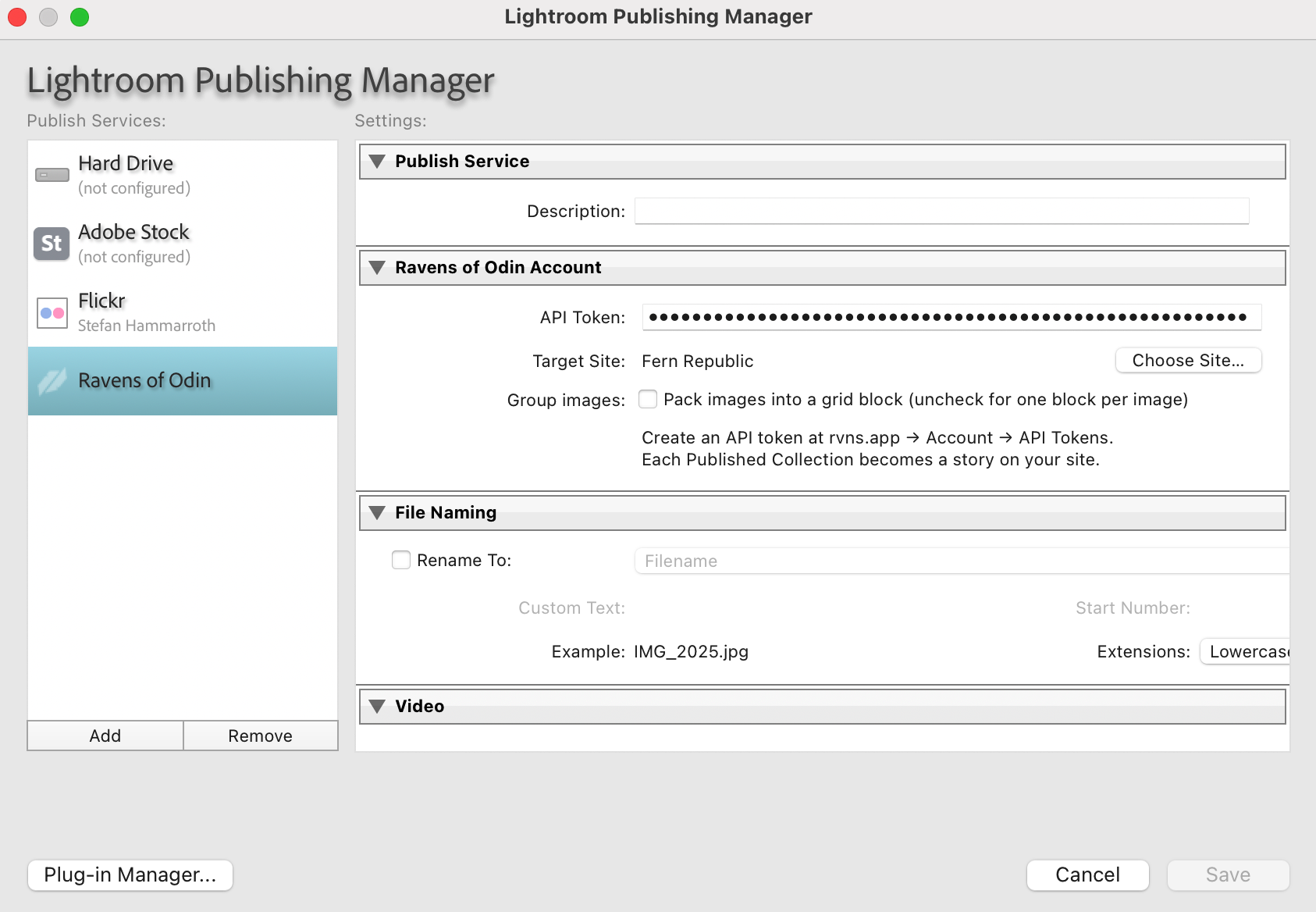
Paste your Ravens API token into the Publish Manager. Pick your target site. Done — you won't need to do this again.
02
Create a Story
Right-click the Ravens of Odin service → Create Story. Name it after your trip, project, or gallery.
03
Drag media in
Drag your selects from the library into the collection — photos and video clips. Arrange them in the order you want.
04
Hit Publish
Lightroom exports, uploads, builds the story layout, and publishes — all in one pass. Your story is live.
See it in action
From your catalog to a published story.
▶
Video demo coming soon
What you get
Built for the Lightroom photographer.
EXIF travels with your photos
Camera, lens, shutter, aperture, ISO, focal length, GPS — all extracted from Lightroom's catalog and passed to Ravens. Camera-info blocks, map pins, and per-image exposure captions populate automatically.
Photos and video together
Mix photos and video clips in the same collection. Photos export with your Develop adjustments; videos render with trim and quality settings from the Video section. Both become blocks in one story.
Publish Service, not just export
Each Published Collection is a story. Lightroom tracks which files are new, modified, or already published. Re-publish only uploads what changed — no duplicates, no manual tracking.
One block per photo, or a grid
Toggle "Group images" to pack photos into a grid block, or leave it off for one image block per photo. Either way, the first image becomes the hero and sets the tone for the story.
Add more later
Shot more photos on day two? Drag them into the same collection and re-publish. New media is appended to the existing story — your earlier work stays exactly where it was.
Fine-tune in the editor
After publishing from Lightroom, open the story in Ravens' web editor to add text blocks, rearrange, set a cover, or switch block types. The plugin and the editor work together.
Install
Up and running in two minutes.
No command line, no dependencies. Just drop a folder and create an API token.
1
Download the plugin
Download ravens-lightroom-plugin.zip and unzip it. You'll get a folder called com.ravensofodin.lightroom.lrplugin.
2
Add it to Lightroom
Open Lightroom Classic → File → Plug-in Manager → Add → browse to the .lrplugin folder. Click Done.
In the Publish Services panel (Library module, bottom-left), click Set Up… next to Ravens of Odin. Paste your token, choose your site, save. Enable the Video section and pick H.264 / High quality for video support.
Requirements
✓ Lightroom Classic (not LR cloud)
✓ macOS or Windows
✓ A Ravens of Odin account
✓ An API token
Ready to publish from your catalog?
The plugin is free for all Ravens of Odin users. Install it and publish your first story in under two minutes.